Google Lens
- 4.7
- Rating
- 1.00B
- Installs
- Free
- Price

 Analysis by App-foxy
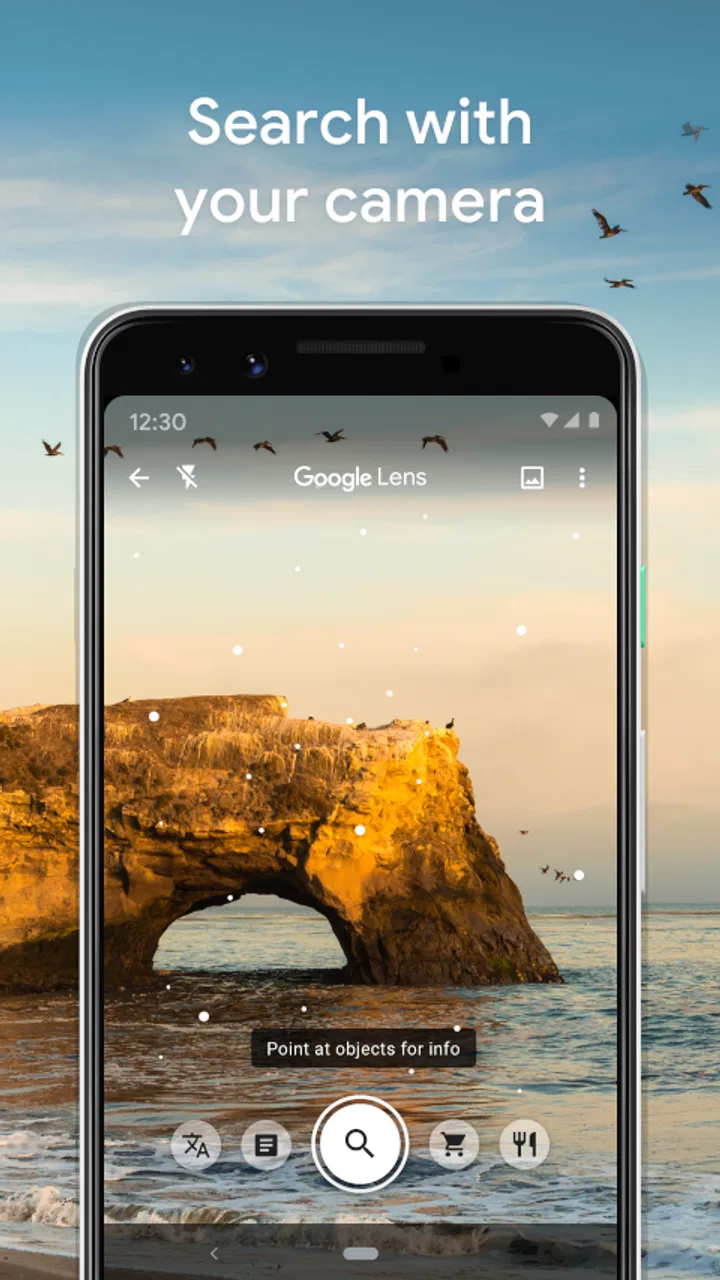
I started using Google Lens for small questions that normally interrupt whatever I am doing: reading a label, identifying a plant, translating a menu, or trying to find a product from a picture. It is a free tools app from Google LLC, and its biggest strength is that it turns the phone camera into a practical search and recognition shortcut rather than making me type everything manually.
That sounds simple, but the difference becomes clear in a shared household. One person can point the phone at an unfamiliar object, another can check the result, and everyone can move on without passing around a laptop or arguing over the right search words. I would not call it perfect, and I still verify anything important, but I find it unusually useful for quick, visual tasks.
How Google Lens fits into everyday household use
A realistic example is a busy kitchen. Someone finds instructions in another language, another person wants to know what an ingredient is, and a child brings over a leaf from outside asking what plant it came from. With Lens, each question begins with the same action: open the camera-based tool, frame the subject, and inspect the result. That consistency matters when several people use one device and nobody wants to learn a complicated workflow.
In-Depth Coverage of Google Lens
For translation, I like the ability to work from text that is already in front of me instead of copying it into another app. A sign, package, or printed notice can be the starting point. The result is most helpful when the text is clear and well lit. Curved packaging, decorative type, glare, and cramped layouts can make recognition less reliable, so I treat the translation as a quick aid rather than a replacement for a careful human reading.
Product searches are another strong household use. If I see a lamp, pair of shoes, book, or kitchen item and want to investigate it later, a photo can be more useful than a vague description. The visual match gives me a starting point for comparison, but it does not guarantee that the exact object has been identified. Similar colors and shapes can lead to similar-looking results, so I check the details before buying anything.
Plant identification is convenient for casual curiosity. I can photograph a leaf or flower and get suggestions without knowing botanical vocabulary first. The important boundary is safety: I would never use an image result alone to decide whether a plant is edible, medicinal, or safe around pets and children. Recognition can guide further research, but it should not be treated as expert confirmation.
The app is also useful for ordinary text handling. Pointing at a paragraph can help me understand what it says, select portions of it, or use the recognized words as the basis for a search. This is faster than retyping, especially when the source is a poster, a worksheet, or a page that cannot easily be copied. Accuracy depends heavily on focus, contrast, and the angle of the camera.
Keeping setup simple without making the phone communal
Google Lens supports Android devices running version 6.0 or later, which makes it accessible on many older phones as well as newer ones. I would still check the particular phone before planning to use it on a shared household device, because the experience can vary depending on how the app is surfaced on that phone and which Google services are already in use.
For a shared device, I prefer a clear routine: the person holding the phone opens the tool, performs the scan, and closes the result when finished. That avoids leaving a search page, a translation, or a photographed document visible for the next person. It is a small habit, but it matters when the phone moves between adults, teenagers, and younger children.
There is a useful distinction between sharing the physical phone and sharing an account. A household may pass around one handset while still keeping personal browsing and search activity separate on individual devices. I would not assume that a shared phone creates separate spaces automatically, and I would not hand it to someone else while a sensitive image or result remains open. The safest arrangement is to treat the current screen as visible to whoever receives the device.
That boundary is especially important with documents. Lens can be pointed at school papers, letters, receipts, identity documents, or medical information because those are exactly the things people want to read or copy quickly. In my view, the convenience is real, but I use extra care with private material: I frame only what is necessary, avoid leaving the image open, and do not treat a quick scan as a reason to ignore normal privacy precautions.
Setup is not difficult, but the first use is worth doing deliberately. I test the camera on a harmless object, try a short piece of printed text, and see whether the results are easy to understand. That gives each household member a chance to learn the basic flow before needing it in a hurry. It also reveals whether the phone camera struggles with glare, low light, or small lettering.
Coordinating results when more than one person is involved
Lens works best when one person captures the image and another person helps judge the answer. This is particularly useful for children, older relatives, or anyone who is not comfortable searching by keywords. The person holding the phone can ask the question aloud, while the other person checks whether the visual match actually makes sense.
I find this shared approach more reliable than silently accepting the first result. If Lens suggests a plant, I compare the visible leaves, stem, and flowers with a second source. If it recognizes a product, I look at the shape, brand, and small details rather than assuming the closest image is the exact item. If it reads a label, I compare the extracted text with the original before using it in a message or search.
That extra check is one of the app’s less obvious lessons: visual recognition is excellent at reducing the effort needed to begin, but it is not always the final authority. The tool removes the blank-page problem. It gives me possible names, translations, or search directions, and then I decide whether the answer is convincing enough for the situation.
You May Also Like

 AccuWeather: Weather Radar
AccuWeather Review: A Quick, Clear Forecast for Everyday Decisions
For everyday plans, the best forecast is the one you can understand quickly. AccuWeather makes rain timing, radar, and local conditions easy to act on, with a few trade-offs.

 Hill Climb Racing
Why Hill Climb Racing Still Turns Crashes Into One More Run
A tiny car, a bumpy hill and one more upgrade: Hill Climb Racing keeps resurfacing because its simple chaos makes every near-miss feel personal.

 AliExpress - Shopping App
AliExpress Makes Global Shopping Feel Personal, but Shoppers Bear the Risk
AliExpress turns a global marketplace into a pocket-sized discovery engine. Its reach is useful, its shopping loop compelling, and its trade-offs easy to miss.

 Lords Mobile: Kingdom Wars
Lords Mobile Is a Kingdom-Building Routine, Not a Quick Match
A case-by-case verdict on the building, battles, device demands, and social commitments that make Lords Mobile rewarding for some players and exhausting for others.

 PDF Scanner app - TapScanner
TapScanner Makes Paperwork Easier to Capture, Check, and Share
TapScanner makes scanning with a phone feel less like a rescue operation and more like a dependable step in getting work done. Its capture tools are useful, though not flawless.

 Block Blast!
Block Blast! Shows How Much a Puzzle Game Can Leave Out
A quiet grid game shows why puzzle players increasingly value instant clarity, repeatable skill and low-pressure play—and where the genre still needs to catch up.
More From Our News Desk
View All News


For household coordination, I would use it for tasks such as sorting unidentified cables, checking the title of a book, translating a short notice, or finding the name of a replacement part. I would not use it as the sole system for tracking household inventory. The app can help identify an object, but it does not replace a shared list, a labeled storage system, or a conversation about where something belongs.
There is also a practical trade-off between speed and precision. A quick camera view is ideal when I only need an idea. A carefully framed still image is better when the item has small text or several similar features. I often move closer, straighten the phone, and remove distracting objects from the frame before trying again. That takes a few seconds and usually improves the usefulness of the result more than repeatedly tapping the screen.
Age, trust, and the limits of visual answers
The app is rated for Everyone, which fits its broad range of everyday uses. In a household with children, I see it as a supervised learning aid rather than an independent authority. A child can photograph a rock, sign, insect, or plant and use the result to start a conversation. The adult’s role is to explain that an identification is a suggestion and that important decisions need another source.
This matters most with health, food, safety, and animals. A picture can be misleading, especially when two species look alike or when the camera captures only one part of an object. I would not let a child decide whether an unknown berry is safe, whether a medicine label has been understood correctly, or whether an unfamiliar device can be handled safely based only on Lens.
Trust also applies to images themselves. A younger user may not think about what is visible around the main subject. A photograph of a worksheet could include a name; a picture of a package might show an address; a photo taken in a room could reveal more of the household than intended. I encourage a simple check before scanning: look at the whole frame, not just the object in the center.
For teenagers, Lens can be genuinely helpful with homework research, language practice, and reading printed material. At the same time, I would encourage them to use recognition as a way to understand a subject, not merely to copy an answer. Selecting text from a page is convenient, but the educational value comes from reading and checking the information afterward.
Older relatives may appreciate the app when small print or unfamiliar language creates friction. The camera-based approach can feel more natural than typing an exact phrase. I would show them how to improve lighting, hold the phone steady, and question uncertain results. Those three habits make more difference than trying to memorize every available mode.
Where it beats ordinary search, and where it does not
Compared with a normal web search, Lens wins whenever I cannot describe the thing accurately. Searching for “black metal object with a round end” is frustrating and produces broad results. A photo gives the search a visual starting point. The same advantage applies to foreign text: photographing a menu is usually less tedious than manually entering unfamiliar characters.
Compared with a dedicated translation app, Lens is more convenient when the source is printed or displayed in the real world and I also want to inspect the object itself. A dedicated translation tool may be preferable when I am having a longer conversation, need a more focused language workflow, or want an interface designed entirely around translation. I choose Lens for the quick bridge between camera and meaning.
Compared with a plant-identification specialist, it is easier to reach but less suitable for decisions that carry risk. A specialist service or knowledgeable person is the better choice when the species must be confirmed precisely. Lens is strongest at helping me formulate the next question, not at replacing specialist judgment.
Compared with a shopping search, the visual route is useful for discovering similar products when I do not know the name. The weakness is that visual similarity can hide differences in size, material, quality, or model. I use the results for research and comparison, then inspect the seller, specifications, and return terms separately.
The app’s enormous reach reflects how broadly people find these shortcuts useful: it has more than a billion installs and a 4.7 average from around 2.8 million ratings. Those figures suggest a mature, widely used tool, but popularity does not remove the need to check results. My own experience is that the value comes from matching the tool to the question rather than expecting one scan to solve everything.
Friction I noticed during real use
Lighting is the first source of trouble. Glossy packaging can reflect the room, small print can blur, and shadows can make a plant look different from how it appears to the eye. I get better results by turning the object toward a window, avoiding direct reflections, and filling more of the frame with the subject.
Busy scenes can also confuse the process. When several objects overlap, the app may focus on the wrong one or return a broad interpretation. A clean, close image is usually better than a dramatic wide shot. This is why I would not rely on a single casual photograph for a precise identification.
Another limitation is that a useful result still demands judgment. Search suggestions can be broad, translations can lose context, and product matches can be approximate. The app saves me from typing, but it does not save me from reading. If I am making a purchase, following instructions, or handling something unfamiliar, I slow down and verify.
The experience also depends on the phone and the situation. A shared household handset may have a scratched lens, limited storage, or a camera that performs poorly indoors. Those are not problems the app can solve. Before blaming Lens, I check the physical camera, clean the lens, improve the light, and retake the image.
I would skip it if my main need were a private, carefully managed document workflow, a specialist identification service, or a full translation environment for extended conversations. It is also not the right choice for anyone who wants every visual answer to be definitive. The app is a flexible front door to information, not a guarantee that the first interpretation is correct.
My household verdict
Google Lens has earned a place in my everyday toolkit because it handles the awkward questions that ordinary search handles poorly. I can point instead of describe, read instead of retype, and investigate an object without knowing its name. That makes it especially practical on a shared device, where different people can use the same simple camera-first routine.
Its free price and Everyone rating make it easy to consider for a broad household, while the support for Android 6.0 and later keeps it relevant to older phones. Google LLC has built a tool that feels most valuable in short bursts: a label at the store, a plant in the garden, a sign on a trip, or a mystery object in a drawer.
My recommendation comes with one clear condition: use it as a starting point and keep human judgment in the loop. Frame carefully, protect private information, close results before handing over a shared phone, and verify anything involving health, safety, money, or food. The best way to use Lens is as a fast visual assistant, not as an unquestionable answer machine.
If that matches what you need, I think it is worth trying. People who regularly encounter unfamiliar text, objects, products, or plants will probably notice its usefulness quickly. People seeking specialist accuracy, deep privacy controls, or a dedicated professional workflow should choose a more focused alternative instead.
FAQs for Google Lens
01What is Google Lens and how does it work?
Google Lens is an AI-powered app designed to identify objects, text, and landmarks through your device’s camera. It works by analyzing the image captured by your camera and providing relevant information, such as translations, product details, or historical facts. This makes it a versatile tool for learning and shopping on the go.
02Is Google Lens free to use, or are there any hidden costs?
Google Lens is completely free to download and use on both Android and iOS devices. There are no hidden costs or in-app purchases required to access its features, making it an accessible tool for anyone interested in leveraging AI technology for object recognition and information gathering.
03What devices are compatible with Google Lens?
Google Lens is compatible with most Android devices running version 6.0 (Marshmallow) and above. For iOS users, it can be accessed through the Google app on devices running iOS 11 and later. Ensure your device's camera and software are up to date for optimal performance.
04Can Google Lens work offline, and what are its limitations in that mode?
Google Lens requires an internet connection to provide accurate and real-time results, as it relies on Google's cloud-based machine learning algorithms. While you can capture images offline, the analysis and information retrieval will occur once an internet connection is restored, limiting its immediate functionality.
05How secure is the data captured by Google Lens?
Google Lens prioritizes user privacy and data security. Images and data are processed in Google's secure servers, and users have control over their data through Google's privacy settings. However, as with any app, it’s advisable to review permissions and manage settings according to your privacy preferences.
Pros
- Quickly identifies objects and landmarks.
- Translates text in real-time effectively.
- Integrates seamlessly with Google services.
- User-friendly interface with intuitive layout.
- Offers shopping suggestions from images.
Cons
- Requires internet connection for most features.
- Limited offline functionality.
- Occasional misidentification of objects.
- Privacy concerns with image data handling.
- Battery consumption can be high during use.

Google Lens
Gallery